




What syncs
Your job photos land on the appointment without anyone uploading them.
It starts with the first appointment a rep records after you connect.
- Job photosPhotos from the matching CompanyCam project, on the appointment's Summary tab.
- Address matchFound from the job address in your CRM, within about 0.1 miles.
- Photo time fallbackNo address? It checks the photos the rep took around the appointment.
- CaptionsEach photo keeps its CompanyCam description.
- HomePlan photosThe rep picks the shots the homeowner sees that night.
- Internal stays internalPhotos marked internal in CompanyCam never come in.
How it works
Three steps, and nobody uploads a photo twice.
Connect CompanyCam
An admin opens Settings, then Integrations, clicks Connect CompanyCam and approves read-only access. No API keys.
The rep records the appointment
SalesAsk finds the matching CompanyCam project and puts its photos on the meeting's Summary tab.
Pick photos for the HomePlan
The rep chooses the shots that tell the story and sends the HomePlan. Managers see the same photos when they review the appointment.


“Really what's changed in the business is the clarity. We are no longer guessing and hypothesizing about what is missing.”
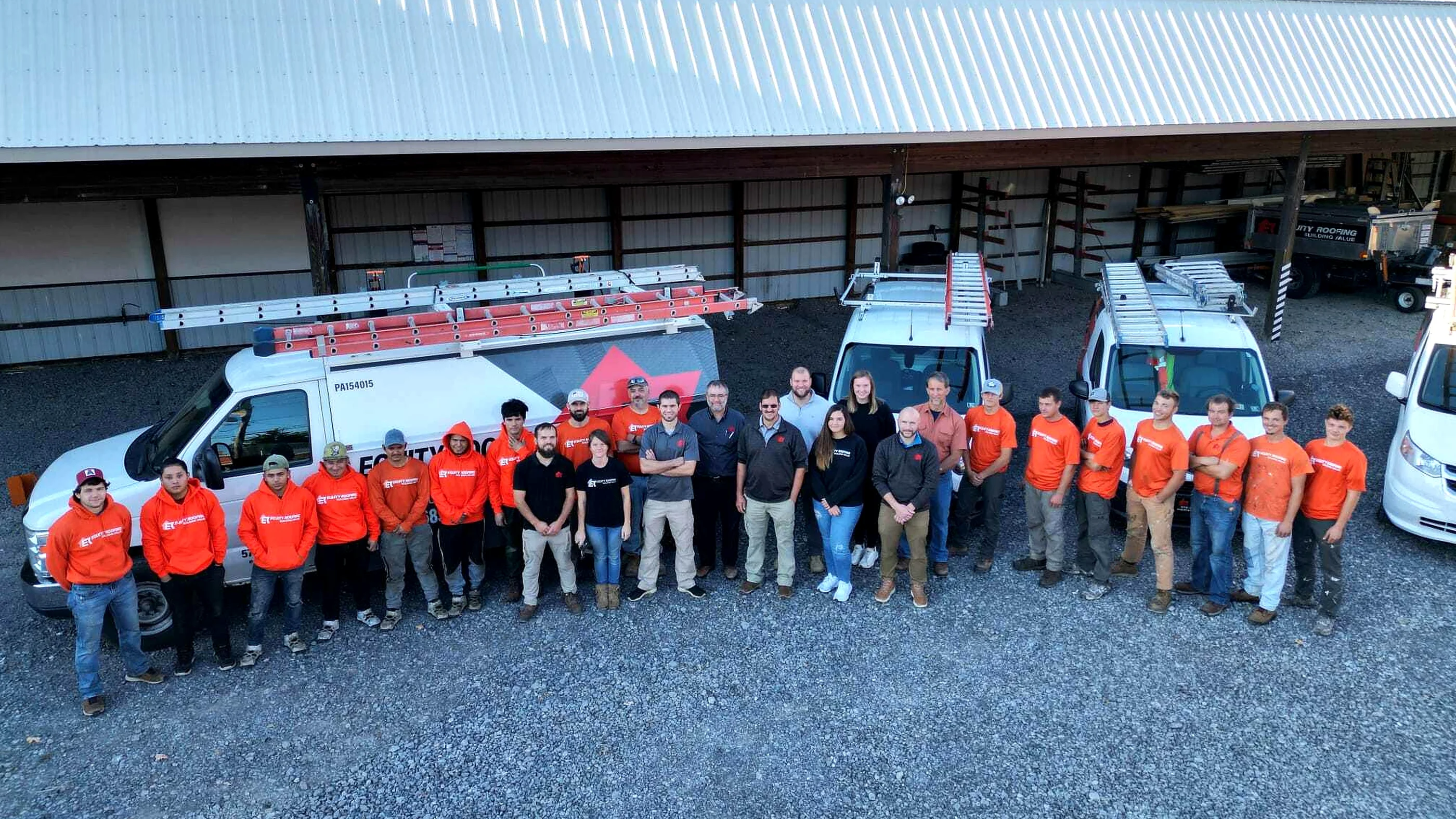

“My sales guys are even coaching themselves with Coach Dean.”
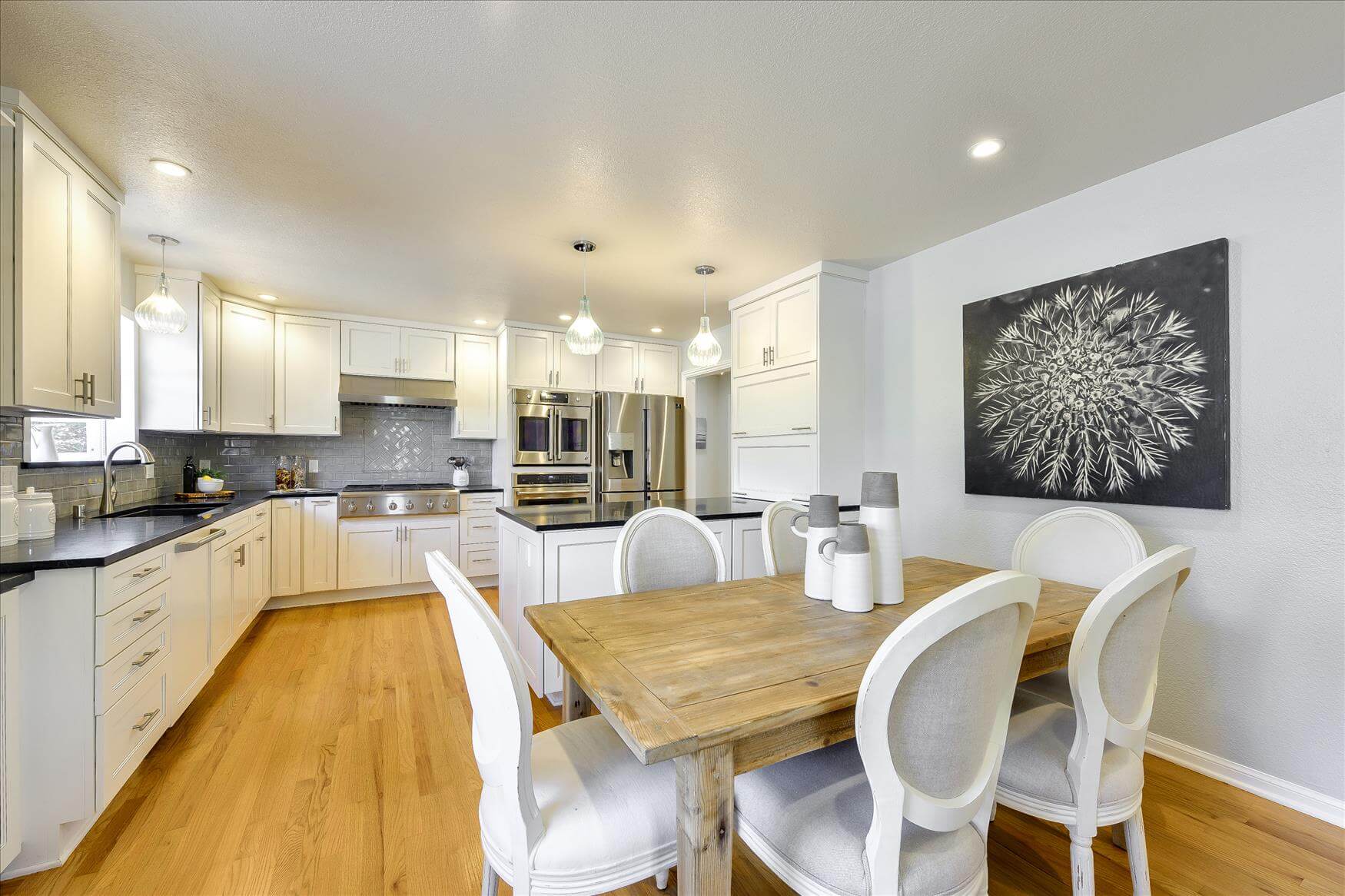

“A huge increase in closing percentages. A huge increase in retention. The whole business is better.”
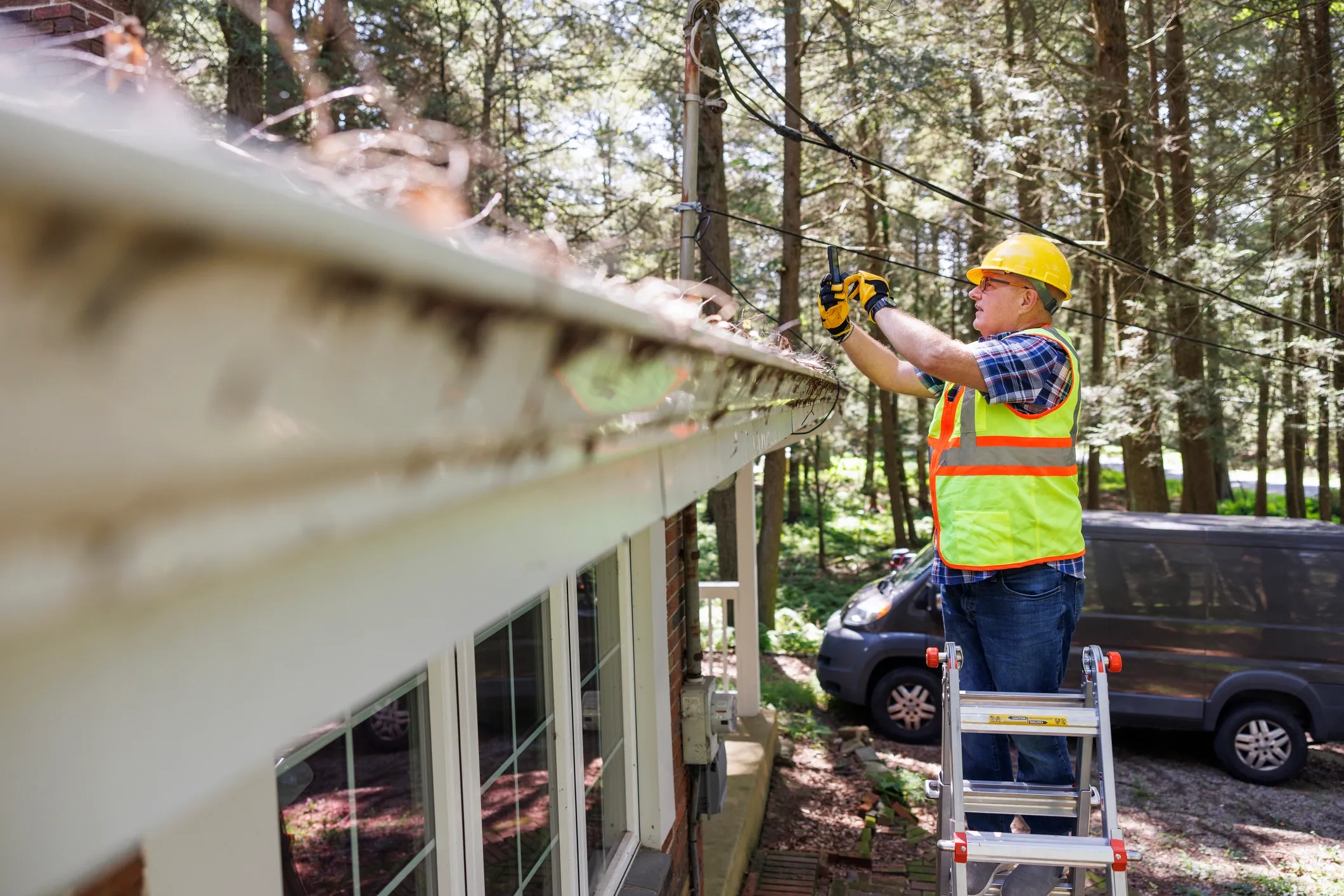

“What SalesAsk has done is pull out the steps that should have happened, highlight areas we can improve, and give us real-time feedback we can actually act on.”


“It's like having my sales manager on every call.”


“100% accuracy and speed. I can input data into SalesAsk and get a response in an hour, which keeps our projects moving.”


“SalesAsk helped grow our average ticket from $17K to $27K. It showed us how to sell the transformation and value of a Parliament Kitchen, not just the product itself.”


“I 100% recommend it to anyone that wants their technicians to sell more.”
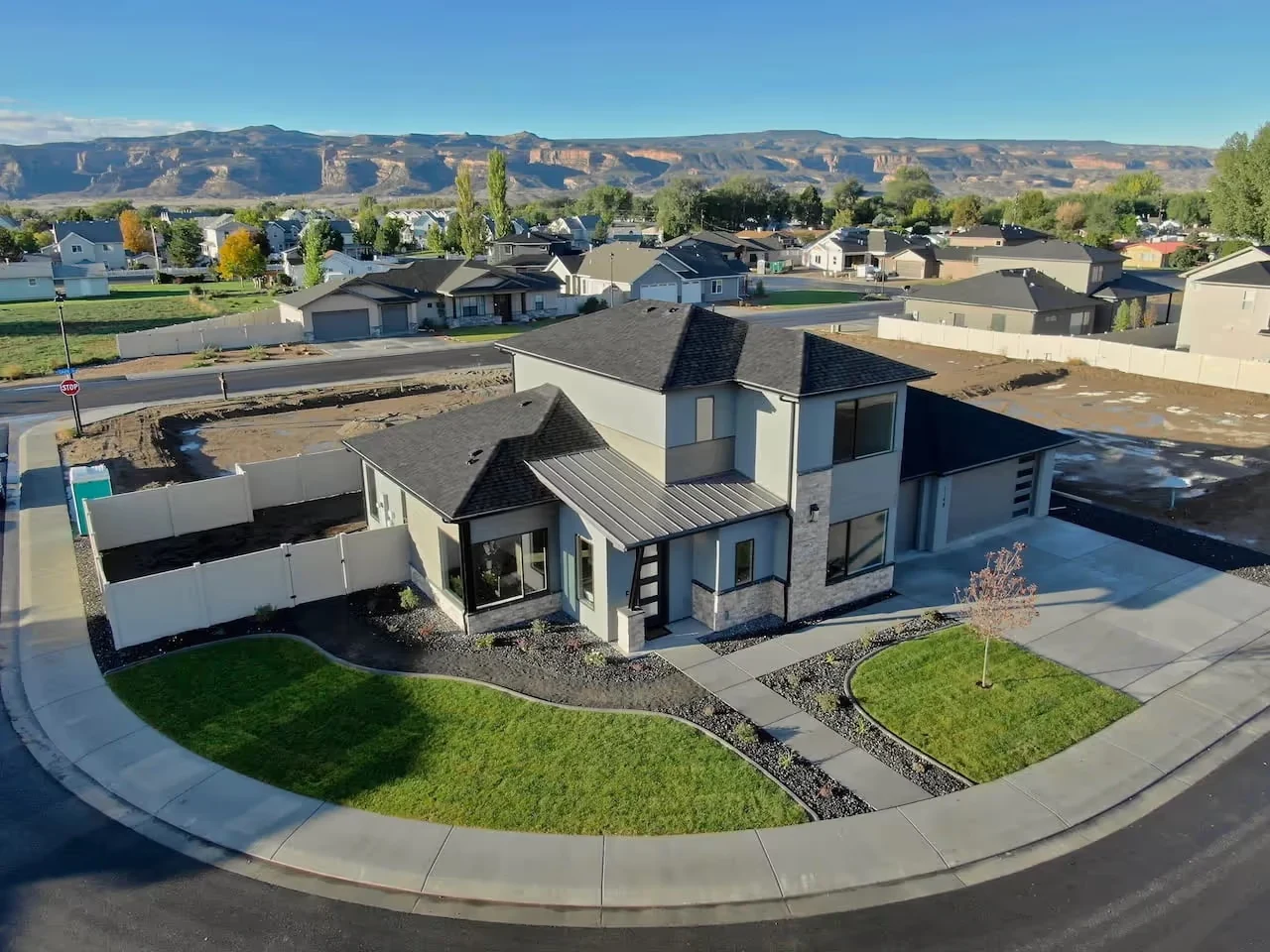

“It helps break things down and catch things that you might have missed. It really opens your eyes to opportunities and more things that you can improve on.”

“It's very customizable. It accurately captures how well they're conforming to the Mr. Roofing way.”


“Being able to pinpoint the exact moments where reps were losing deals was a game-changer. We replicated our top performer’s closing techniques on home additions and saw immediate improvement.”
Setup guide
Step-by-step setup in our docs
How to connect CompanyCam, how photo matching works and how to fix a wrong match. Written for whoever sets it up on your side.

Security and compliance
Built with trust, safety, and reliability at the core.
An independent auditor has checked how we protect your recordings, and HIPAA safeguards cover recordings that hold patient information. Your data is never sold and never used to train models for other companies, and consent tools cover all 50 states.


FAQ
Frequently asked questions
Yes. SalesAsk reads projects, photos and users from CompanyCam and puts the right photos on each recorded appointment. CompanyCam lists SalesAsk in its integrations directory.
A few minutes. A SalesAsk admin signs in to CompanyCam from the Integrations page and approves read-only access, with no API keys or developer.
No. Data moves one way. SalesAsk never creates, edits or deletes anything in your CompanyCam account, and removing a photo in SalesAsk leaves it untouched there.
No. SalesAsk runs on the rep's own phone, the same one they already take CompanyCam photos on. There is nothing to buy or carry to a job.